

If you are using the Brother DCP-L2640DN printer and you see a message related to the drum unit, such as “Replace Drum” or “Drum End Soon”, it doesn’t always mean that the drum needs immediate replacement. In many cases, you simply need to reset the drum counter.
In this guide, we will show you exactly how to reset the drum counter on the Brother DCP-L2640DN quickly and safely.
Why Reset the Drum Counter?
Brother printers track the usage of the drum unit through an internal counter. Once it reaches a certain limit, the printer will display a warning message.
However, if you have already replaced the drum unit or you know it is still in good condition, resetting the counter will remove the error and allow normal printing.
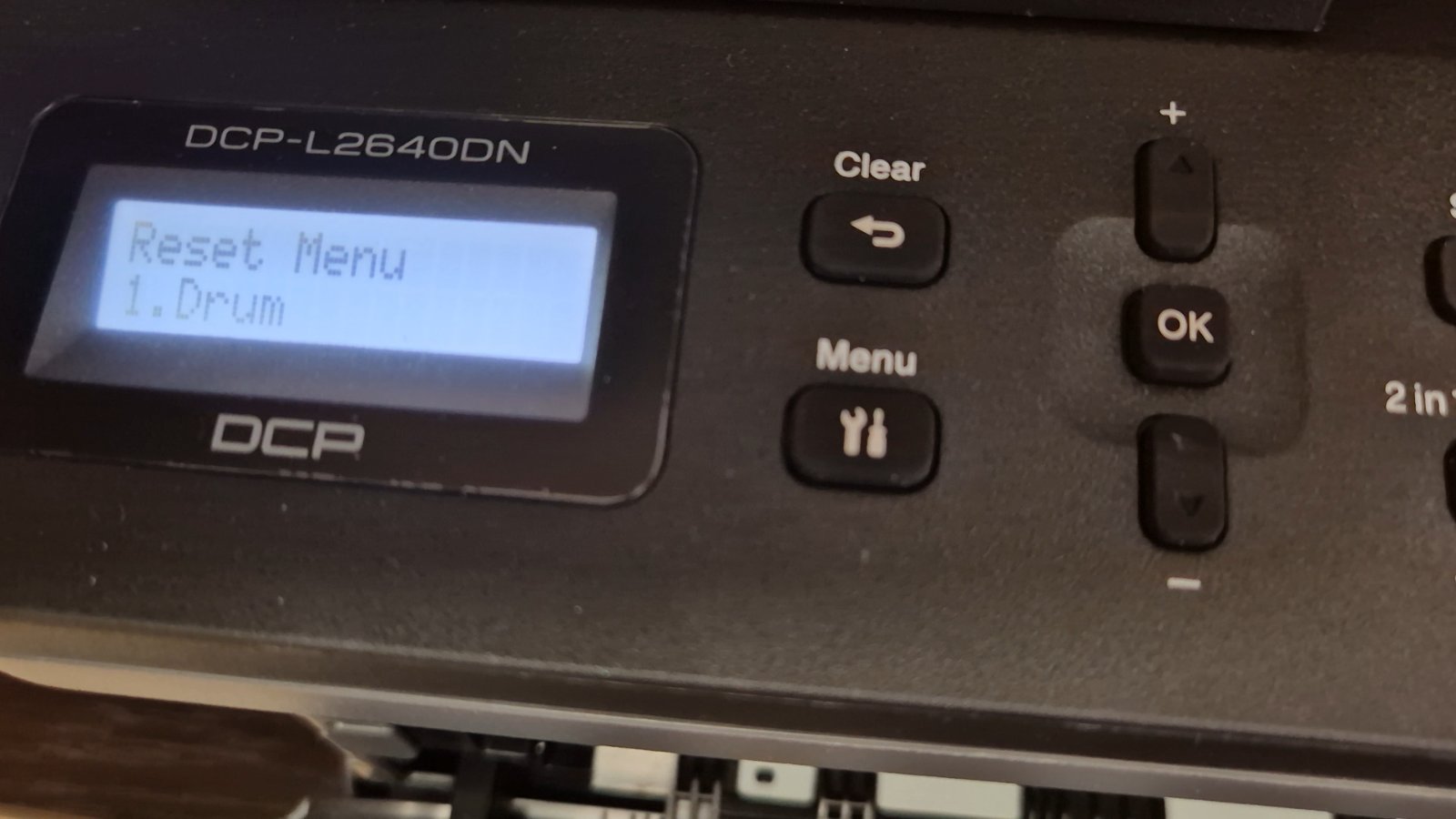
Step-by-Step: Reset Drum Counter on Brother DCP-L2640DN
- Turn on your printer.
- Open the front cover of the printer.
- Press and hold the “OK” button for a few seconds.
- When the reset menu appears, select the drum unit option.
- Confirm the reset by pressing “OK”.
- Close the front cover.
Your drum counter is now reset, and the error message should disappear.
Watch the Full Video Tutorial
If you prefer a visual guide, watch the full step-by-step video below:
Important Tips
- Only reset the drum counter if you have replaced the drum or are sure it still works properly.
- Resetting without replacing a worn drum may result in poor print quality.
- Always use compatible or original drum units for best performance.
Resetting the drum counter on the Brother DCP-L2640DN is a quick and simple process that can save you time and unnecessary costs. By following the steps above, you can easily fix drum-related errors and continue printing without interruptions.